YOUR AI TOOLS. YOUR GODOT PROJECT.

Build games with AI agents and Godot MCP.

Connect AI agents like Codex and Claude Code to Godot. Find the right MCP, get it running, and turn your next idea into a playable game.

Tools and guides here. Development in your own environment.

Open-source picks·Practical guides·Real projects
3D Platformer / Godot official demo
platformer.tscn
2D3DScript
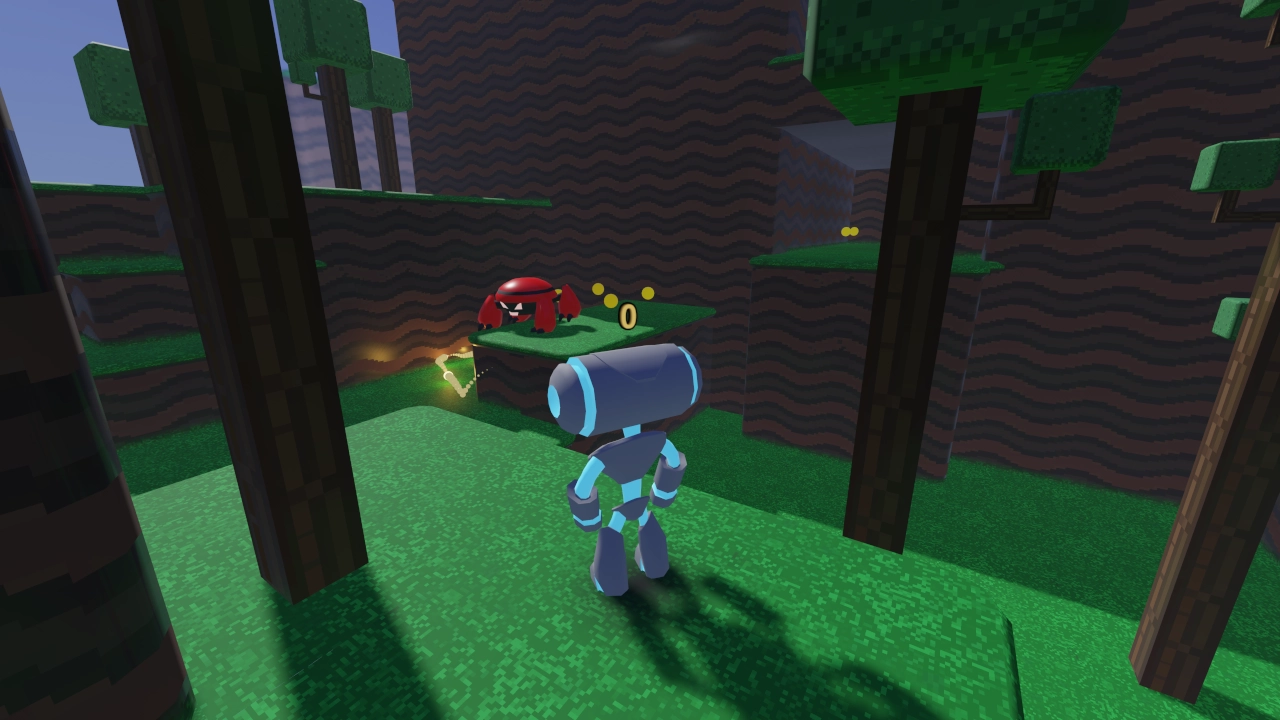
The official Godot 3D Platformer demo, a colorful floating level
START WITH A REAL PROJECT
Official demo sourceExplore project
TRY A FIRST PROMPT

“Inspect the scene, make one small change, then run it and check the result.”

Godot contributors’ demo. Shown as a starting project, not an AI-generated result.

ONE WORKFLOW, FROM IDEA TO ITERATION
Write scripts
Edit scenes
Run & debug
Check the result

Where are you starting?

I am new to Godot

Start with nodes, scenes and a small working example. Trace one action from input to feedback before asking AI to change it.

I already have a Godot project

Choose a tool for one concrete task, connect it to a project copy, then inspect before editing. Both learning paths stay open below.

Which development tasks can AI help with?

Capabilities depend on the server, client, engine version and permissions. Confirm the tool list: reading a file, inspecting a live scene and capturing runtime feedback are different operations.

Understand a scene

Ask for nodes, attached scripts and dependencies to locate the right change. A file-reading tool does not necessarily expose live node state.

Make a small script change

Request a focused diff, such as one speed value, and review the touched files. Editing support and editor integration vary by tool.

Get feedback from a run

If supported, request launch output, errors or a screenshot. Otherwise run Godot yourself and share the result. Tool success alone does not prove gameplay is correct.

Continue with the existing capability guide

See what AI can help you do in Godot

Choose one bounded task: inspect a scene, change a script, or investigate an error. Available operations depend on your MCP and client; review the diff and check the result in your own environment.

Inspect a scene

Ask for the node tree and relevant properties before editing. Compare the answer with the editor.

Change a script

Choose one behavior, request a small diff, then run normal and failure paths.

Investigate an error

Provide the exact error and reproduction steps. Apply one fix and rerun the same check.

01 / THE NEXT STEP

From download to your first tool call.

Start with a compatible engine, connect one MCP, and verify a small change.

New GDScript project? Start with Godot 4.7.2 stable.

Choose Standard for GDScript, .NET for C#. Older projects and tutorials need their own version check.

Choose your version

Connect your local coding client

Use Coding-Solo Godot MCP over stdio. Follow a complete client-specific setup, then request a read-only engine version check.

CHOOSE YOUR MCP

A setup that fits your workflow.

Pick one server to begin. Each tool has its own requirements.

Godot 4.7+ · uv / uvx

Godot AI

  1. 1Install Godot 4.7+ and uv, then choose a published Godot AI release.
  2. 2Follow that release’s verification instructions. Place the addon at addons/godot_ai/ with plugin.cfg inside it.
  3. 3Enable Godot AI in Project → Project Settings → Plugins.
Full setup & verification

02 / YOUR FIRST OPERATION

Small changes.
A game that keeps
getting better.

Let AI help with the next feature. Keep the creative decisions, the project files, and the final check in your hands.

Follow the full workflow
01

Open a working project

Run an official demo and establish a starting point.

02

Give the AI one clear task

Choose a small script or scene change, with an observable result.

03

Edit, run, and inspect

Review the diff, read errors, and check the game’s behavior.

04

Save a checkpoint. Build the next feature.

Keep a working version you can return to. Repeat with a new goal.

Choose a tool, connect it, then check one change

Which tool fits my task?

Compare inspection, editing and runtime support against your engine and client. Start with the smallest capability you need.

How do I connect it?

Use the selected server’s installation guide, configure its project path and client, then confirm a read-only request.

What if the connection or result fails?

Check the client log, server command, project path and version requirements first. For a running game, reproduce the error in Godot and inspect its output before changing more code.

03 / THE NEXT STEP

What do you need to understand to make a Godot game?

Concepts → implementation → complete source

Six development questions, grounded in Godot’s official foundations. Brackeys’ platformer is our running example, not the outline of this guide. Learn a concept, trace its responsibility in the project, then try one change with a visible result.

How the parts work together

The world contains the player, platforms, coins and enemy. Rules turn interactions into state changes; labels, animation and audio make those changes visible or audible. The following paths summarize the pinned source, not a proposed architecture.

Intent and movement

  1. Input actions
  2. Player velocity
  3. Terrain contact and camera follow

Pickup and state

  1. Coin overlap signal
  2. Direct add_point() call
  3. Score state and label update

Failure and lifetime

  1. Enemy contact or falling
  2. Kill zone and timer
  3. Reload the level; keep Music

The same coin handler also starts pickup animation, which hides the coin, disables collision, plays sound and removes the node. A single event reaches both the rule and its feedback.

GameManager is recreated with the level, so its score resets. Music is an Autoload outside that level; it has a different lifetime.

A small platformer with a collection-and-restart loop. The slime does not chase or fight; there are no checkpoints, saved progress, or multi-level unlocks. “Great job!” is a placed label, not a victory system.

A foundation first, features when needed

Nodes, scenes, instances, resources, scripts, input and communication are the foundation for understanding an interactive Godot project. Physics explains this platformer; labels, animation, audio and Autoload are implementation choices. You do not need every feature in every game.

Work on a copy, make one change at a time and restore it after checking. Exercises below are our suggestions, not features already added to the original or completed runtime tests.

How is the game world organized?

Start by naming objects and their ownership, then separate reusable definitions from placed instances and shared data. That gives every later rule a clear home.

Nodes, scenes & the scene treeShared foundation
In plain language · official concept
A node is an object with a job; a scene saves a hierarchy of nodes. The scene tree is the hierarchy currently running. A child’s transform is relative to its parent, so structure can also express which objects move together.
Why it matters · our reasoning
Before writing behavior, decide who owns each object. A clear tree lets you locate the thing to change and predict what is removed when a scene reloads.
In Brackeys · source fact
game.tscn owns the level, player and GameManager. Camera2D is a child of the Player instance, so the view follows the character; the music lives outside this level through Autoload.
Try it · our suggested exercise
In a project copy, move Player in the editor and inspect Camera2D’s global position. It should move with Player while the terrain stays put. Undo the move.
Official Godot 4.2 reference (English)
Scene instancesShared foundation
In plain language · official concept
An instance is a use of a saved scene, with its own placement and local overrides. Think of a reusable object definition and several objects made from it.
Why it matters · our reasoning
Separate shared behavior from placement. You can fix one coin scene instead of maintaining a different coin implementation at every location.
In Brackeys · source fact
game.tscn places nine coin.tscn instances and two platform.tscn instances. The second platform adds its own movement animation without turning the first platform into a moving one.
Try it · our suggested exercise
Duplicate one coin instance and move it to an empty reachable spot. Run the project: collecting the new coin should use the same scoring and pickup behavior. Remove the added instance afterward.
Official Godot 4.2 reference (English)
ResourcesShared foundation
In plain language · official concept
Nodes do work; resources supply the data they use. A texture, font, shape or animation can be referenced by several nodes, rather than copied into each script.
Why it matters · our reasoning
Understand shared data before editing it: changing a shared resource can affect multiple objects. A complete project therefore needs assets and resource settings as well as code.
In Brackeys · source fact
The TileSet and SpriteFrames are embedded in scene files; image and font files live in assets/. The SpriteFrames in coin.tscn refer to coin.png and define the shared spinning animation.
Try it · our suggested exercise
In coin.tscn, change the default SpriteFrames animation speed from 10 to 5. Run the project and check that all coin instances spin more slowly, while the player animation stays unchanged. Restore 10.
Official Godot 4.2 reference (English)
Trace the original implementation
Project & assetsGive the game a project and reusable data.
Source mapping and editor context
Create a project, import the bundle, and save a main scene. The finished project declares Godot 4.2 / Forward Plus and res://scenes/game.tscn as its entry.
Expected behavior to check
Check that the FileSystem dock contains scenes, scripts and assets.
Files in the original project
Open tutorial at 0:00

Opening overview; project preparation precedes the player chapter.

Level & cameraGive the player a world to navigate and a view to follow.
Source mapping and editor context
Paint a TileMap with a TileSet and terrain collision. In game.tscn, Camera2D is under the player instance, with smoothing and limit_bottom = 120. The camera mapping is source-checked; the linked chapter is TileMap.
Expected behavior to check
Check solid terrain and that the view follows the player with the lower boundary.
Files in the original project
Open tutorial at 16:57

This example uses Godot 4.2 TileMap and its embedded TileSet. Read the linked 4.2 documentation with this source; do not replace it with newer APIs without a separate migration check.

One-way platformsAdd surfaces the player can jump through from below.
Source mapping and editor context
Instance platform.tscn in game.tscn. Its AnimatableBody2D has a CollisionShape2D with one_way_collision enabled.
Expected behavior to check
Jump up through the platform and land on top.
Files in the original project
Open tutorial at 23:28
Moving platformAnimate a reusable level object.
Source mapping and editor context
The final game.tscn adds AnimationPlayer under Platforms/Platform2. Its move track animates position between (370, 52) and (462, 52) with ping-pong looping.
Expected behavior to check
Check that the platform moves back and forth and can carry the player.
Files in the original project
Open tutorial at 52:56

The moving-platform mapping comes from the source; this link opens the earlier animation chapter.

How does player intent change the world?

First identify an action, then choose its physical or non-physical effect. Input is a general foundation; gravity and collision are choices required by this platformer’s design.

Player intent & input actionsShared foundation
In plain language · official concept
Input actions name what the player intends, independently of the physical key. An event handles a particular press; polling asks whether an action is active now.
Why it matters · our reasoning
Separate controls from rules so a new key binding does not require rewriting gameplay. Decide whether an action should happen once or continue while held.
In Brackeys · source fact
project.godot maps move_left, move_right and jump. player.gd polls an input axis for movement and is_action_just_pressed for a ground-gated jump.
Try it · our suggested exercise
Add another unused key to jump in Input Map without changing player.gd. Test both Space and the new key on the ground, then remove the extra binding.
Official Godot 4.2 reference (English)
Coordinates, velocity & gravityFor this 2D platformer
In plain language · official concept
Movement turns intent into position changes. This platformer uses horizontal velocity and gravity; negative Y velocity moves upward in Godot’s 2D coordinates. Other genres can use very different movement rules.
Why it matters · our reasoning
Keep direction, speed and elapsed time distinct. It helps explain why a jump has height and why a velocity should not be mistaken for a position.
In Brackeys · source fact
player.gd sets SPEED = 130 and JUMP_VELOCITY = -300, adds gravity using delta, and calls move_and_slide(). The Camera2D follows independently of these speed constants.
Try it · our suggested exercise
Change only SPEED from 130 to 100 in a copy. Compare time to reach the same landmark, then check jumping and landing still work. Restore 130.
Official Godot 4.2 reference (English)
Bodies, areas, layers & masksFor this 2D platformer
In plain language · official concept
Bodies handle solid contact; areas detect overlap; shapes define their boundaries. A collision layer describes membership and a mask selects what to detect. These are distinct from the visible artwork.
Why it matters · our reasoning
Choose which interactions should block movement and which should trigger rules. Collision is needed for this platformer, but a menu-based game may have no physics at all.
In Brackeys · source fact
Player is on layer 2, coins and kill zones detect mask 2, and terrain uses layer 1. platform.tscn has a one-way CollisionShape2D.
Try it · our suggested exercise
On one coin instance, temporarily clear mask layer 2. Pass through it: it should no longer count the player as a pickup. Restore the mask and check that collection returns.
Official Godot 4.2 reference (English)
Trace the original implementation
Player controlTurn input into movement and jumping.
Source mapping and editor context
Create CharacterBody2D with AnimatedSprite2D and CollisionShape2D, attach player.gd, and map the three input actions. SPEED is 130 and JUMP_VELOCITY is -300 in the original.
Expected behavior to check
On a collidable floor, test A/D or arrow keys and Space; jumping requires floor contact.
Files in the original project
Open tutorial at 7:31

Who owns the rules, and when do they run?

Model state and transitions before adding more effects. The enemy changes direction; death changes time scale and eventually rebuilds the level. These are different rules with different triggers.

GDScript & update timingShared foundation
In plain language · official concept
A script expresses state and the rules that change it. Godot calls lifecycle methods: readiness is for setup, _process follows rendered frames, and _physics_process runs on physics ticks. @onready delays a reference until the node is ready.
Why it matters · our reasoning
Ask two questions for each rule: who owns the state, and when should it change? A score should change on a pickup, not every frame; a physical player needs regular movement updates.
In Brackeys · source fact
game_manager.gd owns score and changes it in add_point(). player.gd uses _physics_process; slime.gd uses _process with delta. This describes the original, not a universal choice of update method.
Try it · our suggested exercise
In add_point(), temporarily add two instead of one. Collect one coin and check the displayed count becomes two; standing still should not keep increasing it. Revert the change.
Official Godot 4.2 reference (English)
Trace the original implementation
Enemy patrolAdd a moving hazard.
Source mapping and editor context
slime.gd moves a Node2D horizontally using delta and reverses direction when RayCastLeft or RayCastRight hits. slime.tscn instances Killzone for contact damage. This is patrol, not pursuit or combat.
Expected behavior to check
Check reversal at obstacles and restart after touching the slime.
Files in the original project
Open tutorial at 41:58
Death & restartRecover from falling or enemy contact.
Source mapping and editor context
Connect Killzone.body_entered and Timer.timeout. killzone.gd slows Engine.time_scale to 0.5, removes the player collider and starts the timer; timeout restores 1.0 and reloads the current scene.
Expected behavior to check
Check slow motion followed by a fresh level and reset score.
Files in the original project
Open tutorial at 34:20

How do objects cooperate?

Trace a single event across responsibilities: detection belongs to a coin, score belongs to GameManager, and the display reflects that score. Follow both signals and direct calls.

Signals & timersShared foundation
In plain language · official concept
A signal announces that something happened; a connected method decides how to respond. A direct method call asks a known object to do something immediately. Both are useful, and they are not the same connection.
Why it matters · our reasoning
Separate detection from response so one event can update several responsibilities. When debugging, trace the connection as well as the code inside the handler.
In Brackeys · source fact
coin.tscn connects body_entered to coin.gd; the handler directly calls %GameManager.add_point() and plays pickup. killzone.tscn connects Timer.timeout to its reload handler. The coin does not emit a custom score signal.
Try it · our suggested exercise
Add a temporary print in the coin’s body_entered handler. Collect a coin and check that the message and score change occur together. Remove the print; do not add a second signal connection.
Official Godot 4.2 reference (English)
Trace the original implementation
CollectiblesDetect contact with a coin and give feedback.
Source mapping and editor context
coin.tscn uses Area2D with mask 2 and a body_entered connection. coin.gd calls GameManager.add_point() and starts pickup. The animation hides the sprite, disables collision, plays sound and calls queue_free after one second.
Expected behavior to check
A collected coin disappears; its pickup feedback completes before removal.
Files in the original project
Open tutorial at 28:20
Scoring & hintsShow progress and explain controls.
Source mapping and editor context
Add GameManager and its ScoreLabel to game.tscn; game_manager.gd increments score and updates text. Labels contains the placed hints, including Great job! without a victory trigger.
Expected behavior to check
Collect coins and check the count; reload and check it resets.
Files in the original project
Open tutorial at 62:35

How can players tell what happened?

Pick the feedback needed for the action: a changed number, a pose, a disappearance or a sound. These implementations support understanding; they are not all mandatory engine features.

UI & local game stateChoose for the feedback you need
In plain language · official concept
Interface elements present state to the player. The displayed text is a view of the data, not the data itself; changing a label alone does not change a score variable.
Why it matters · our reasoning
Choose feedback that answers the player’s question: did my action work? A label can answer it here; another game could use a different visual or no numerical score.
In Brackeys · source fact
GameManager updates its child ScoreLabel after a pickup. The labels are in the level, not a fixed HUD. Great job! is placed text, not a win condition.
Try it · our suggested exercise
Change only the score message prefix in game_manager.gd. Collect one coin: the wording should change while the count still increases by one. Restore the original message.
Official Godot 4.2 reference (English)
Animation & feedbackChoose for the feedback you need
In plain language · official concept
Animation changes an image or property over time. AnimatedSprite2D switches frames; AnimationPlayer can coordinate several properties and method calls.
Why it matters · our reasoning
Use animation to explain state or give an event a readable sequence. Inspect the tracks before changing code: behavior may be stored in a scene rather than a script.
In Brackeys · source fact
player.gd chooses idle, run and jump frames. coin.tscn’s pickup tracks hide the coin, disable collision, play sound and later free the node. game.tscn animates the second platform’s position.
Try it · our suggested exercise
Reduce only the run animation speed in player.tscn. Run and stop: the leg animation should slow down while travel speed stays unchanged. Revert the animation setting.
Official Godot 4.2 reference (English)
Audio, project settings & AutoloadChoose for the feedback you need
In plain language · official concept
Audio players play streams, buses mix groups of sounds, and Autoload keeps a node outside the current scene. Autoload is a lifetime choice, not a required part of every game.
Why it matters · our reasoning
Decide which feedback should survive a restart. Separating music and effects also lets you balance continuous ambience against short event sounds.
In Brackeys · source fact
Music is an Autoload in project.godot and plays music.tscn on the Music bus. Coin PickupSound uses SFX. GameManager belongs to game.tscn and is not an Autoload.
Try it · our suggested exercise
Lower only the Music bus volume, then collect a coin and restart the level. Music should be quieter while the pickup sound setting stays unchanged. Restore the bus volume.
Official Godot 4.2 reference (English)
Trace the original implementation
Character animationMake movement readable.
Source mapping and editor context
Configure idle, run and jump SpriteFrames in player.tscn. player.gd selects them from floor contact and direction, and flips the sprite horizontally.
Expected behavior to check
Observe idle on the ground, running while moving, and jump frames in the air.
Files in the original project
Open tutorial at 52:56
Music & sound effectsMake events audible and keep background music separate.
Source mapping and editor context
Register music.tscn as Music Autoload. Route its autoplay AudioStreamPlayer2D to Music; coin.tscn routes PickupSound to SFX. default_bus_layout.tres defines both buses.
Expected behavior to check
Listen for background music and pickup audio; check music across a level reload.
Files in the original project
Open tutorial at 67:46

How do you know the change works?

Close the loop: predict a result, run in the right context, inspect errors, and repeat after failure or reset. Keep a working copy before trying another change or exporting.

Run context, reset & verificationShared foundation
In plain language · official concept
A project chooses a main scene; running it assembles the context in which its rules work. Running an isolated scene is a different test. Export packages the project for a target platform and needs its own check.
Why it matters · our reasoning
A successful edit is not proof of correct behavior. Define an observable result and check normal play, failure and reset before making the next change.
In Brackeys · source fact
The entry is scenes/game.tscn, which supplies %GameManager to coins. Death reloads this scene and resets its state, while Music remains. The pinned source has no export preset or ready-made build.
Try it · our suggested exercise
Run Project, collect two coins, then fall into a kill zone. After restart, collect one coin: the displayed count should be one, not three. Record the result and any error; do not call an unrun check passed.
Official Godot 4.2 reference (English)
Trace the original implementation
Run & exportTurn the source project into a build for a chosen platform.
Source mapping and editor context
Run the main scene, then use Project > Export with matching export templates and a platform preset. The pinned repository has no export_presets.cfg or ready-made builds; configure and test your own export.
Expected behavior to check
Open the exported build outside the editor and repeat movement, pickup and restart checks.
Files in the original project
Open tutorial at 74:16

These source maps are grouped by responsibility. Video timestamps are optional references beside an example, not a development sequence. Files describe the finished project; they include later additions.

Chapter references retain the previously recorded video description. This review checks official documentation and pinned source, without claiming video playback, Godot runtime results or MCP-generated output.

Complete original project

Brackeys’ original project is not an MCP-generated game. The pinned revision contains 7 scenes and 5 scripts, plus assets and configuration. project.godot declares Godot 4.2 and Forward Plus; it does not identify the exact patch version. Newer-engine import compatibility has not been tested here.

388257461dbd07b1e5020270c72fca48b30c493d
  1. Download and extract the ZIP, keeping the whole First Game folder together.
  2. In Godot 4.2, choose Import and select First Game/project.godot. Allow assets to import, then open scenes/game.tscn. Use a copy before trying a newer engine; assess any conversion changes separately.
  3. Use Run Project (F5; Cmd+B on macOS), not an isolated coin scene. Try A/D or arrows, Space, pickups, slime contact and falling. Compare behavior with the expected checks above.

Source: Brackeys, first-game-in-godot (Unlicense / public domain). Keep the upstream LICENSE with redistributed source. The CC0 asset bundle credits analogStudios_ and RottingPixels (art), Brackeys / Sofia Thirslund (music), Brackeys / Asbjørn Thirslund (sounds), and Jayvee Enaguas - HarvettFox96 (fonts). Attribution is appreciated, not required by CC0.

What parts make up this 2D game?

A player moves through a collision world. Coins connect contact to score and feedback; the slime and fall zones connect danger to restart. Camera, labels and sound make the loop understandable. These are responsibilities in this platformer, not a checklist every game must implement.

Input → player motion → world collision · coin contact → score + pickup feedback · danger → timer → level reload

Source boundary: Godot 4.2 for the 2D example; Godot 4.3 + bundled Jolt for the 3D prototype. Versioned official references explain concepts. The case descriptions come from pinned source; all exercises are our optional suggestions, not completed runtime checks.

Player control and animation

Purpose · our explanation
Turn intent into movement the player can read.
Related concepts · official reference
Input actions name intentions; a character body handles motion, while animation communicates its state.
In the pinned project · source fact
player.gd applies gravity and grounded jumping in the physics update, calls move_and_slide(), and selects idle, run or jump and flips the sprite.
Inspect files and try one change

Optional practice · our suggestion

On a copy, change SPEED from 130 to 100; check travel distance, jumping and animation before restoring it.

Read the matching official reference

Level, collisions and platforms

Purpose · our explanation
Define where movement is allowed and where the player can stand.
Related concepts · official reference
Scenes reuse objects; collision shapes and layers describe physical contact separately from artwork.
In the pinned project · source fact
game.tscn uses the Godot 4.2 TileMap with an embedded TileSet. platform.tscn is an AnimatableBody2D with one-way collision; the level animates one platform back and forth.
Inspect files and try one change

Optional practice · our suggestion

Move one platform in a copy; check landing from above and passing through from below. This is not a TileMapLayer migration.

Read the matching official reference

Coins and score

Purpose · our explanation
Connect an interaction to a rule, then show that something changed.
Related concepts · official reference
An Area2D signal reports overlap; a script owns state; a Label displays it. A signal need not handle every step.
In the pinned project · source fact
The coin body_entered handler directly calls GameManager.add_point(), then starts pickup animation. The manager increments score and updates ScoreLabel; the animation hides and removes the coin with sound.
Inspect files and try one change

Optional practice · our suggestion

Add one coin instance in a copy and check that collecting it increments the score exactly once.

Read the matching official reference

Enemy behavior

Purpose · our explanation
Make a moving hazard with a predictable rule.
Related concepts · official reference
Frame updates move this Node2D; ray casts detect walls; a separate area handles harmful contact.
In the pinned project · source fact
slime.gd patrols horizontally and reverses at its left or right ray cast. slime.tscn includes a kill-zone instance; this is not pursuit, combat or a navigation system.
Inspect files and try one change

Optional practice · our suggestion

Reduce patrol speed in a copy; observe both wall turns and player contact.

Read the matching official reference

Death and restart

Purpose · our explanation
Turn failure into another attempt with a defined state reset.
Related concepts · official reference
An area detects entry, a Timer delays an action, and SceneTree replaces the current scene. Autoload can outlive that scene.
In the pinned project · source fact
killzone.gd slows time, removes the player collider and starts a timer. Timeout restores time and reloads the level. GameManager is recreated, while the Music Autoload remains. There is no checkpoint or win screen.
Inspect files and try one change

Optional practice · our suggestion

Collect a coin, then fall: check that the level and score state reset while music continues.

Read the matching official reference

Camera, hints, UI and sound

Purpose · our explanation
Help the player see where they are and notice the result of a rule.
Related concepts · official reference
Camera2D frames the world; Labels show text; audio players and buses control sound. These are choices for this experience, not universal requirements.
In the pinned project · source fact
The player carries a smoothing camera. game.tscn places hints and ScoreLabel in the world, not a fixed HUD. Music autoplays; the coin pickup uses the SFX bus. The “Great job!” label is not a win condition.
Inspect files and try one change

Optional practice · our suggestion

Mute only the SFX bus in a copy; check that pickups still add points and background music remains.

Read the matching official reference

From 2D to 3D: what stays, and what needs rebuilding?

The responsibilities carry over: player input and movement, level collision, interaction, enemies, score/state, start/death/restart, UI, animation and sound. The spatial implementation changes. Brackeys’ 3D project demonstrates a first-person scene prototype, not a complete version of the 2D game.

Input, movement and camera

Purpose · our explanation
Keep the intent → motion → feedback loop; redesign direction and viewpoint for depth.
Related concepts · official reference
3D uses Vector3 and transforms: X/Z form the ground plane and Y is up. CharacterBody3D and Camera3D replace the 2D movement and view implementation.
In the pinned project · source fact
ProtoController turns input into movement relative to its basis, applies gravity and jumping, and rotates its body and head for mouse look. Its scene enables sprint and freefly; project.godot maps the actions.
Inspect files and try one change

Optional practice · our suggestion

On a copy, lower base_speed and check forward movement after turning 90 degrees; restore it afterward.

Read the matching official reference

Level, collision and physical props

Purpose · our explanation
Keep the job of defining traversable space; rebuild shapes and placement in three dimensions.
Related concepts · official reference
Node3D scenes assemble the world. StaticBody3D represents fixed obstacles; RigidBody3D responds to physics. A visible mesh is not itself a collision shape.
In the pinned project · source fact
main.tscn instances modular walls, floors and props. wall.tscn uses static collision and barrel.tscn a rigid body with a convex shape. project.godot selects the bundled JoltPhysics3D extension.
Inspect files and try one change

Optional practice · our suggestion

Duplicate a wall in a copy; check both its appearance and whether the controller is blocked.

Read the matching official reference

Interaction, score and state

Purpose · our explanation
Rules still decide what an interaction means; a 3D model does not supply a pickup rule.
Related concepts · official reference
Signals, method calls and state variables transfer to 3D. Area3D can detect an overlap when you choose to add interaction.
In the pinned project · source fact
coin_stack.tscn, key_ring.tscn and chest.tscn are physical props. They contain no pickup, inventory, quest or score logic. my_script.gd is an empty Node3D template, not a game manager.
Inspect files and try one change

Optional practice · our suggestion

Optional extension: design one pickup rule with Area3D and a counter in your own copy; verify one increment per item. No such implementation is provided here.

Read the matching official reference

Enemies, start, death and restart

Purpose · our explanation
A finished game still needs decisions about challenge and progression, whether it is 2D or 3D.
Related concepts · official reference
Scripts and scene lifetime remain useful; enemy movement may need 3D sensing. Menus, victory, death and checkpoints are design choices, not automatic engine features.
In the pinned project · source fact
The configured main scene opens the first-person environment. This prototype has no enemy behavior, score-based progression, death/restart loop or win/lose screen; the linked main scene and controller are the evidence boundary.
Inspect files and try one change

Optional practice · our suggestion

Optional extension: specify a fall boundary and reset rule before coding; verify that a restart also restores the intended state. Do not assume the 2D kill-zone script works unchanged.

Read the matching official reference

UI, animation, materials and lighting

Purpose · our explanation
Feedback still explains state. Depth also requires choices about surfaces, light and readability.
Related concepts · official reference
Control-based UI can remain on screen; 3D models and materials replace sprites when appropriate. Lighting shapes how surfaces appear, not game rules.
In the pinned project · source fact
The prototype combines imported GLB models, a WorldEnvironment and DirectionalLight3D; torch_mounted.tscn adds an OmniLight3D. It has no gameplay HUD or character animation state machine comparable to the 2D example.
Inspect files and try one change

Optional practice · our suggestion

Change the torch light energy in a copy and compare visibility. Adding a status label or character animation would be a separate extension.

Read the matching official reference

Music, effects and spatial sound

Purpose · our explanation
Sound can acknowledge actions in either dimension; distance and direction matter only when the experience needs them.
Related concepts · official reference
AudioStreamPlayer3D positions sound relative to a listener, usually the camera. Non-positional music can use AudioStreamPlayer instead.
In the pinned project · source fact
Unlike the 2D music and pickup effect, the 3D prototype does not wire gameplay audio. Its main scene and controller have no corresponding audio-player setup; a torch model is not an audio emitter.
Inspect files and try one change

Optional practice · our suggestion

Optional extension: add a sound to a torch in your own copy and compare near/far playback. Choose non-positional playback for UI feedback when appropriate.

Read the matching official reference

05 / THE NEXT STEP

Skip the empty project.

Open an official Godot demo. Understand what works. Then make it your own.
Explore all resources

Official projects by Godot contributors. Choose a matching engine and project ref before importing.

LEARN BY MAKING

Learn 2D & 3D,
with Brackeys.

Start with a playable 2D platformer or an explorable 3D dungeon. See what each project includes, then follow the original lessons.

2DBRACKEYS / BEGINNER TUTORIAL

2D Platformer with Brackeys

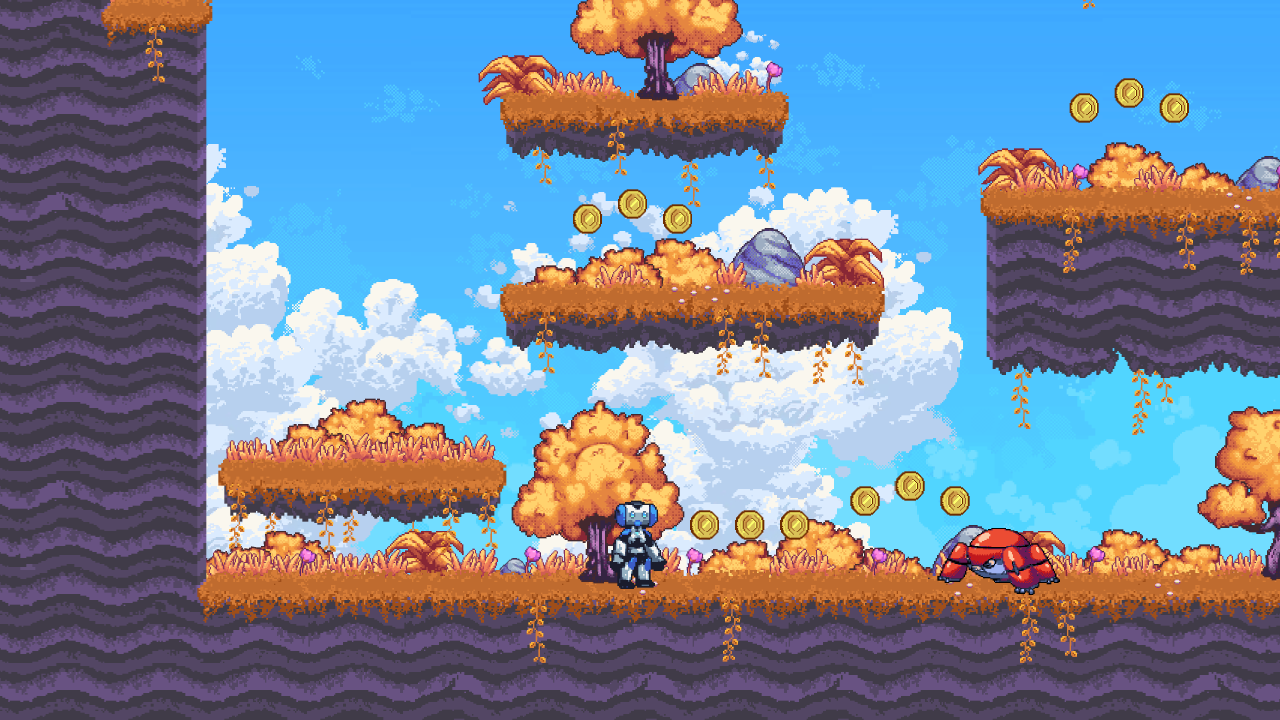
Build a pixel-art platformer with movement, animated characters, coins, patrolling enemies, and a death-and-restart loop.

2D platformer · 77 min

  • Movement & animation
  • Coins & scoring
  • Enemies & restart
Explore 10 project features

7 scenes · 5 GDScript scripts · one playable level

  • Player movement

    Move left and right, jump from the ground, and respond to gravity and collisions.

    7:31 in the tutorial
  • Character animation

    Switch between idle, run, and jump animations. Flip the sprite to face the movement direction.

    52:56 in the tutorial
  • TileMap level

    Build a pixel-art level from tiles, with terrain collisions, platforms, and obstacles.

    16:57 in the tutorial
  • Following camera

    Follow the player with a smoothed Camera2D and a lower view boundary. Configured in the game scene.

  • One-way & moving platforms

    Jump through platforms from below and land on top. An animated platform travels horizontally back and forth.

    23:28 in the tutorial
  • Coin pickups

    Animated coins trigger a score increase and pickup sound, then disappear and are removed from the scene.

    28:20 in the tutorial
  • Patrolling slime

    A slime moves sideways, turns when its rays detect an obstacle, and kills the player on contact.

    41:58 in the tutorial
  • Death & level restart

    Falling into a kill zone or touching the enemy triggers slow motion, then reloads the whole level.

    34:20 in the tutorial
  • Hints & coin count

    In-level labels explain jumping and show how many coins you collected. The count resets when the scene reloads.

    1:02:35 in the tutorial
  • Music & pickup audio

    An autoload plays background music. Coin pickups use a sound effect, with separate Music and SFX buses.

    1:07:46 in the tutorial
What this project covers

A small platformer with a collection-and-restart loop. The slime does not chase or fight; there are no checkpoints, saved progress, or multi-level unlocks. “Great job!” is a placed label, not a victory system.

Also covered in the video
  • Exporting a game

    The video explains export. The linked repository supplies source, not a set of ready-made platform builds.

    1:14:16 in the tutorial

Checked against the official video chapters and this GitHub source revision on October 10, 2026. Source reviewed; not run locally in Godot. Original Brackeys work, not an MCP-generated game.

3DBRACKEYS / BEGINNER TUTORIAL

3D First-Person Scene with Brackeys

Explore a modular dungeon with first-person controls, physics, materials, and lighting. A scene-building prototype ready to extend with your own gameplay.

3D first-person scene · 50 min

  • First-person controls
  • Modular dungeon
  • Physics & lighting
Explore 10 project features

28 reusable building and prop scenes · first-person controller

  • Greybox to finished scene

    Start with simple 3D shapes, then replace the blockout with modular models and a collidable floor.

    6:13 in the tutorial
  • First-person movement

    WASD movement, mouse look, jumping, gravity, and collision. Click to capture the mouse; press Escape to release it.

    11:11 in the tutorial
  • Sprint & free flight

    The supplied controller scene enables sprinting and free-flight mode, which disables the player collider for exploring the scene.

    11:11 in the tutorial
  • Modular architecture

    Combine walls, corners, T-junctions, arches, windows, doorways, pillars, stone and wood floors, and ceilings.

    26:53 in the tutorial
  • Dungeon props

    Dress the level with tables, chairs, barrels, crates, banners, candles, torches, food, chests, coin stacks, keys, and a sword and shield.

    18:45 in the tutorial
  • Physics & collision

    A rigid-body barrel, static building and prop colliders, and an animatable door collider. The project is configured for Jolt physics.

    14:15 in the tutorial
  • Models & materials

    Import GLB models, apply textures and StandardMaterial3D materials, and reuse models as independent scenes.

    22:38 in the tutorial
  • Sky & environment

    An HDR panorama supplies the sky, with environment brightness and ambient-light settings for the dungeon.

    39:24 in the tutorial
  • Lighting & shadows

    A directional light and warm point lights on mounted torches illuminate the level and cast shadows.

    42:00 in the tutorial
  • Rendering polish

    Ambient occlusion, glow, tonemapping, exposure, color correction, and MSAA anti-aliasing are configured in the project.

    45:38 in the tutorial
What this project covers

An explorable scene prototype. Coins, keys, and chests are props: pickup, key-operated locks, inventory, and quests are not wired up. There is no shooting, enemy AI, combat, or win/lose loop. The 28 reusable scenes are building pieces and props, not 28 levels.

Also covered in the video
  • Terrain

    Terrain is a video topic; this project does not include a terrain-editing tool.

    9:31 in the tutorial
  • Animated characters

    The video discusses animated characters. The finished project does not include a complete third-person character or enemy system.

    35:43 in the tutorial
  • Camera & render quality

    The closing lessons cover camera settings and rendering quality for a 3D scene.

    47:18 in the tutorial

Checked against the official video chapters and this GitHub source revision on October 10, 2026. Source reviewed; not run locally in Godot. Original Brackeys work, not an MCP-generated game.

A world of free 2D & 3D assets.

Pixel characters, modular worlds, and nature kits from Kenney and Brackeys.

Browse asset packs

06 / THE NEXT STEP

Commercial Godot examples

Godot games that reached Steam and shared public sales milestones.
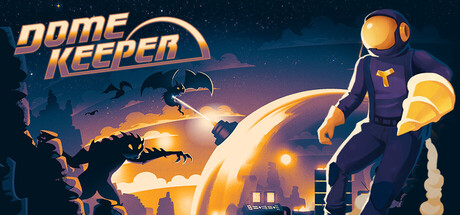
View supporting commercial examples
Dome Keeper Steam cover

Mining / roguelike

Dome Keeper

$1M gross revenue

Publisher statement · Sep 2022

Publisher CEO reported profitability shortly after launch and a $1M gross-revenue milestone. Quoted in reporting; gross revenue is not net profit.
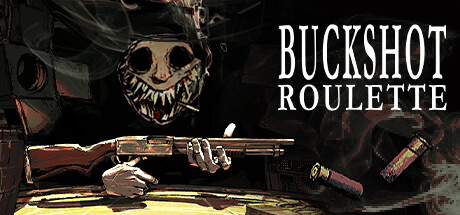
Buckshot Roulette Steam cover

3D / horror

Buckshot Roulette

6M+ Steam copies

Official announcement · May 2025

Historical Steam sales milestone announced May 8, 2025, not a current total or profit figure.
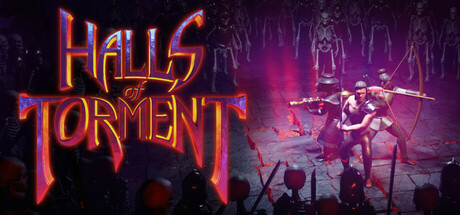
Halls of Torment Steam cover

Survivor / action RPG

Halls of Torment

1M Steam copies

Developer announcement · Oct 2024

The developer announced one million Steam units sold on October 17, 2024.
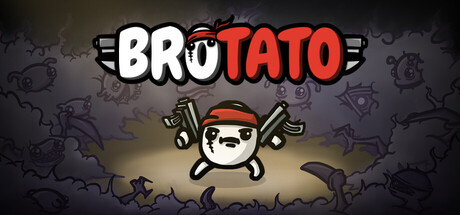
Brotato Steam cover

2D / arena survivor

Brotato

1.5M+ copies

Partner press release · Apr 2023

Seaven Studio’s April 26, 2023 release reported this milestone without limiting the platform scope.

Historical milestones, not current totals or income forecasts. These are Godot games; we do not claim they were made with AI or MCP.

07 / THE ENGINE QUESTION

Godot, Unity, or Unreal
for AI game development?

For solo developers starting a 2D or modest-scope 3D game, Godot is our first recommendation. Here’s where each engine fits in 2026.

Read the honest comparison
Godot

Start small. Keep control.

OUR PICK
Unity

Build on your existing C# workflow.

Unreal

Plan for demanding, high-fidelity 3D.

08 / GOOD QUESTIONS

Before you
start building.

Clear answers for choosing your tools and getting your first project running.

Open the Godot docs
What is Godot MCP?

A Godot MCP server connects an MCP-compatible AI client to Godot tools. Depending on the server, an assistant can inspect scenes, edit nodes, launch a project, or read runtime feedback. “Godot MCP” describes an ecosystem of community projects, not one official Godot product.

Which Godot MCP should I start with?

Our first editor-workflow recommendation is hi-godot’s Godot AI. Choose Godot MCP Runtime when running a game and checking interactions is your main task. Compare requirements and limitations before installing; our ranking is based on public documentation, releases, and issues, not hands-on performance benchmarks.

Which version of Godot should I download?

For a new GDScript project, Godot 4.7.2 stable Standard is the starting candidate as of October 10, 2026. Godot AI v4 requires Godot 4.7+. Existing projects and older tutorials should keep their recorded version until an upgrade is checked. Choose the .NET editor only when your project needs C#.

Do I need MCP to write a Godot game with AI?

No. An AI coding tool can help edit project files without MCP. Add MCP when access to editor state, scene operations, logs, or runtime interactions helps your workflow. Using more tools is not automatically faster or cheaper.

Are these MCP servers free?

The four featured projects use the MIT license. Your AI client or model provider may charge separately. Some alternatives, such as Godot MCP Pro, require a paid server package; a public GitHub repository does not always contain the full product.

Where can I download projects and assets?

The download library links to original MCP releases, official Godot demos, Brackeys projects, and asset creators. Mirror links only appear after a package has been published with a fixed version, file size, checksum, and license review.

Can I use the Brackeys projects with a current MCP?

Use the original tutorials to learn the game and inspect its source. Their project metadata records Godot 4.2 for the 2D project and 4.3 for the 3D project. A newer MCP can require a newer engine; adapt a copy and test it before combining the two.

Can a successful tool call prove that my game works?

No. Check the saved files, reopen the scene, run the game, and repeat the intended interaction. Runtime screenshots and input simulation help, but you still need human checks for visual quality, controls, and whether the game is enjoyable.

Can I start without knowing how to code?

Yes: open a small project, identify its player scene and change one visible property. AI can explain code, but learn enough to review changes and test behavior; generated code is not a correctness guarantee.

How is writing GDScript different from using MCP?

GDScript defines the game’s behavior. MCP connects an AI client to tools that may inspect or edit a project or run checks. It does not replace the language or Godot; file editing alone can also be useful.

Which engine versions and AI clients do these examples cover?

The pinned 2D source declares Godot 4.2; the 3D source declares 4.3 with a bundled Jolt extension. Neither declares an MCP client. Check each server’s current requirements and your client’s transport/configuration support; test upgrades on a copy.

Were the Brackeys examples generated with MCP?

No. These are Brackeys’ original tutorial projects, used here to explain responsibilities and source structure. Our MCP prompts and optional exercises are separate suggestions; we have not run these games as part of this content review.

How do I recover if an AI change breaks my project?

Before a change, commit a working version or copy the whole project. Review the diff, run a focused check, then revert that change or restore your copy if it fails. Keep unrelated work and imported assets; do not ask the assistant to reset everything blindly.

Where is the complete source for both examples?

Use “Complete original project” for the pinned 2D tree and ZIP, and “Complete 3D prototype source” after the 3D comparison. The existing project cards also link to downloads and credits. Keep the project folders intact when importing.

YOUR NEXT PROJECT STARTS HERE

Pick your tools.
Make your game.

Explore downloadsNeed a hand? Start with the setup guide